
Yes, you can rebuild a Webflow website with AI — paste your URL and it comes back as an editable site — and from there Outlyne works as your conversion coach, suggesting changes that turn more visitors into inquiries and making them for you once you give the go-ahead. Webflow itself is rarely the problem; the move is usually about cost, the Designer’s learning curve, or wanting simpler editing. This guide covers what carries your Google rankings, which Webflow features do not follow, and how to switch without losing traffic.
Can you rebuild a Webflow website with AI?
Yes. You do not need to export code or open the Webflow Designer. Outlyne rebuilds from your live site: paste your Webflow URL and it loads your pages the way a visitor’s browser does, reads your text and layout, and rebuilds them as a new, editable site, starting with the page you pasted, usually your home page, with each of the others ready to build when you open it.
Export gives you static files, a rebuild gives you an editable site
Webflow does let you export code, though it takes a paid Workspace plan rather than any Site plan, and the export is a snapshot, not a working site. Your interactions keep running, since webflow.js ships in the ZIP, but CMS content is left out entirely, Collection pages export as empty templates, forms stop submitting, and site search stops working. You would be trading a polished tool for a folder of files to host and maintain. A rebuild is different in kind. The AI reads your live pages, so you do not need the export at all.
It rebuilds, it does not export code
The distinction that matters is that this is a rebuild, not a code export. A rebuild recreates your content as fresh, structured sections you keep editing in the app. That difference is the whole reason to do this, and it is why the SEO steps below matter: you are moving your content, so you carry the load-bearing parts across.
Why do people move their website off Webflow?
Webflow is a serious tool, and that is exactly why people leave it.
Power you pay for in money and time
Webflow gives designers pixel control, but that power comes with a learning curve and a price that climbs once the CMS is involved. If you remember the CMS and Business Site plans, they are gone: Webflow folded them into a single Premium plan in May 2026, so the lineup is now Starter, Basic, and Premium, with the CMS on Premium and code export still gated behind a paid Workspace plan on top. Teams often find they are paying for depth they do not use and skill they do not have on hand.
Design changes mean opening the Designer
Copy tweaks are manageable on Webflow, but changing the design means working in the Designer’s professional canvas: classes, breakpoints, and a box model you are expected to understand. Wanting to describe a change and have it happen, instead of learning a design tool to move a button, is the specific pull toward AI.
When not to move
This is not a knock on Webflow’s capability; it is a fit question. If your team has the design skill and uses the depth, Webflow earns its place. Move when the complexity or cost outweighs what you actually need.
Should you move from Webflow to Outlyne, or stay?
The honest answer is that it depends on what your Webflow site actually is. Outlyne rebuilds static and marketing pages well. It is not yet the right home for a large CMS-driven site, a store, or a members area.
| Outlyne is a good fit when | Stay on Webflow, for now, if |
|---|---|
| Your site is mainly marketing and lead generation | You run Webflow Ecommerce |
| You want editing you can do without the Designer | You run a large CMS site with many collection items |
| You want to stop paying for depth you do not use | You run a members area or gated content |
| You are happy to rebuild rather than copy every detail | The Webflow interactions are core to the site |
Outlyne does not run a CMS, ecommerce, or memberships yet, and Webflow interactions and animations do not carry, so if those are the heart of your site, keep them on Webflow or hold off. One note on members areas: Webflow retired its native User Accounts on January 29, 2026, so gated content on Webflow now runs through a third-party membership service, and that service, not Webflow, is what a move would need to accommodate. If your Webflow site is mostly static marketing pages, it is a strong fit.
Use the move to trim, not just copy
Even when Outlyne is a clear fit, do not recreate every page just because it exists. A migration is a chance to simplify: keep the pages that earn traffic or drive inquiries, and drop the duplicate landing pages, the abandoned blog posts, and the sections nobody reads. A leaner site is easier to keep good.
What happens to your SEO when you rebuild a website?
Your rankings are not a Webflow feature. They live in a few things you carry across when you rebuild.
The five things that carry your rankings
- Your URLs. Google ranks specific pages at specific paths, including Webflow CMS collection URLs. Keep the same paths.
- Your content. The words on each page are most of what you rank for. Bring the meaningful text; do not thin it for a cleaner design.
- Your titles and descriptions. The SEO title and meta description you set per page in Webflow’s page settings.
- Your headings. One clear H1 per page and sensible H2s, so Google and AI answer engines can read the page.
- Your internal links. The links between your own pages that pass authority around.
Rankings follow content and links, not the builder underneath them. Move those across intact and your positions come with them.
The Webflow-specific thing to watch
Webflow sites usually have clean, well-structured SEO already, so most of what ranks you is in portable shape. The place to be careful is the CMS. Collection items live under their Collection URL, at paths like /blog/post-name or /projects/name, and those exact URLs are what Google has indexed, so decide deliberately which of them to preserve.
The one mistake that tanks traffic
Keep those and your rankings have no reason to fall. The usual mistake on a Webflow move is changing CMS collection paths so they no longer match, which can orphan a whole blog or portfolio at once. Webflow itself tells you to set 301 redirects if you ever rename a Collection URL, which is a fair measure of how much rides on those paths.
How does Outlyne rebuild your Webflow site?
You paste your Webflow URL, Outlyne reads the live site, and it rebuilds the page you pasted, usually your home page, as a set of named sections: a hero, a features block, testimonials, a contact section, and so on. You can edit it as soon as it is done, and each of the other pages Outlyne read waits in your page menu, ready to build when you open it.
From live pages to named sections
The import reads your rendered pages, including the finished result of your Designer work and interactions, and each page you build is rebuilt from what it read to match your structure rather than guessing at it.
Why typed sections beat exported code
Here is what separates this from exporting code or using a generator. Exported Webflow is static files you now own the upkeep of; a generator hands you fresh markup to babysit. Outlyne rebuilds your site into real, typed sections the system understands, so editing stays a normal act, styling stays consistent across every page, and improvements to a section type roll out everywhere they are used. You keep a polished result without keeping the maintenance or the learning curve.
How do you keep your SEO when leaving Webflow?
Work through this in three phases: before you switch, during the rebuild, and after you go live.
Before you switch
- Inventory your URLs. Write down every page that gets search traffic. Your Webflow sitemap, at
/sitemap.xmlwhen auto-generation is on, is the fastest way to get the full list, CMS pages included, and the Pages report in Google Search Console shows which of them earn clicks. - Note your SEO titles and descriptions. Copy the per-page SEO title and meta description from Webflow’s page settings so you can match them on the new site.
During the rebuild
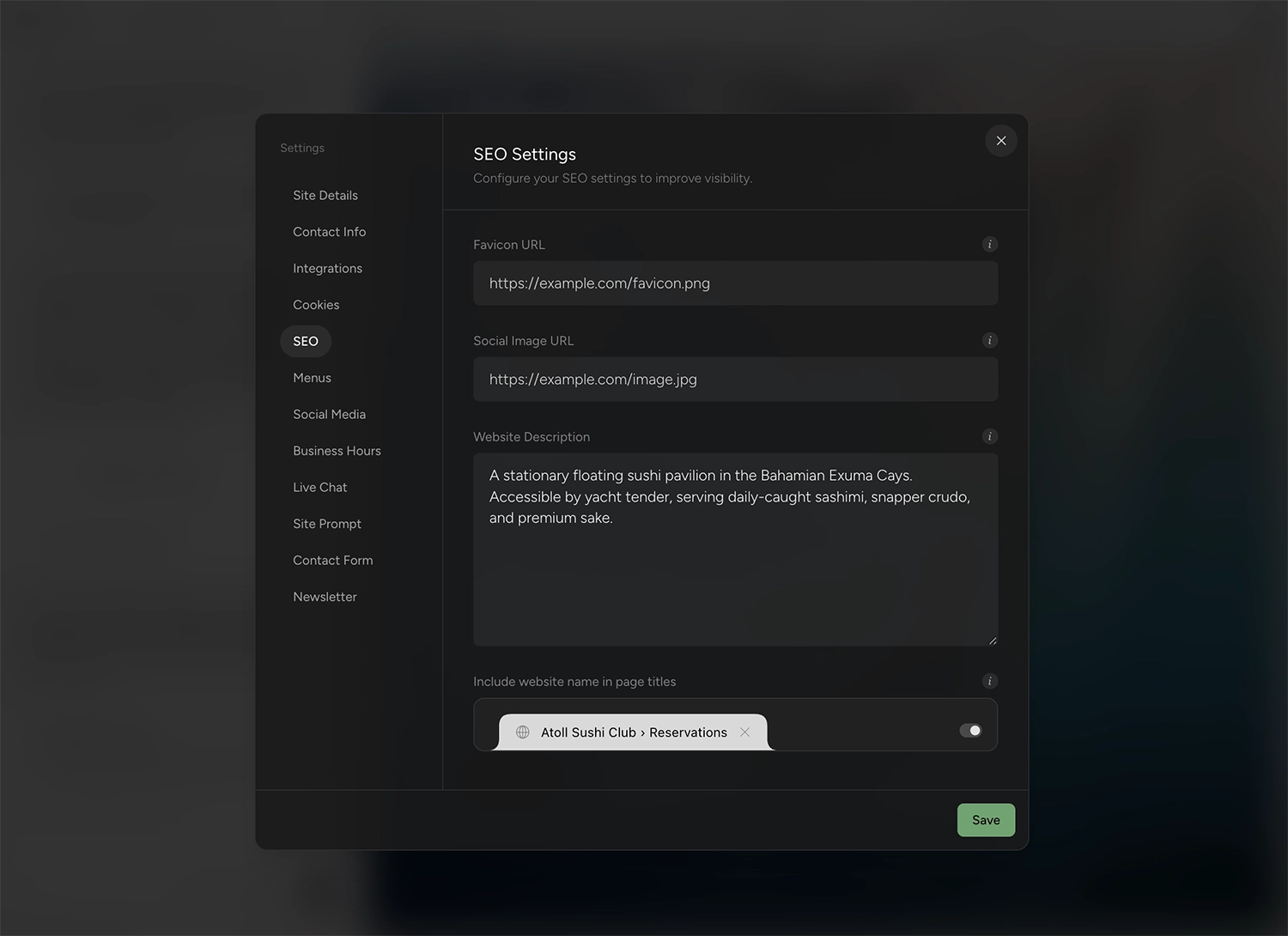
- Match your paths, or redirect them. Name your new pages so their URLs match your old ones exactly, since matching your paths is what carries the rankings across. Where a path has to change, add a permanent (301) redirect from the old URL to the new one in Outlyne’s site settings, which handles temporary (302) redirects too; a 301 tells Google the page has moved for good, so its ranking follows.
- Preserve headings and content. Keep one H1 per page and the body text that earns your rankings. Rewriting is fine; deleting sections to tidy the design is how traffic drops.
- Carry over titles and descriptions. Match each page to what Webflow had, unless you are deliberately improving it.
After you go live
- Point your domain and confirm your paths. Build every page you need first, since each page is read from your live site when you build it, and a page that is not built yet stays off the published site. Once the new site is live on your domain, spot-check that your important pages sit at the URLs you matched, and that each old URL you redirected lands on its new page.
- Resubmit your sitemap. Submit the new sitemap in Google Search Console so it recrawls quickly, then watch the Pages report over the next couple of weeks to confirm your key pages stay indexed.
See the custom domain guide for the DNS steps.
How long does it take to rebuild a Webflow site with AI?
The import itself is quick.
The import is fast
The page you paste is ready to look at and edit within minutes, and you build every other page the import read when you open it, which takes a free Outlyne account and some of its AI credits. For a marketing site you can be looking at a near-complete draft the same afternoon.
The polish is the real work
The draft is the start, not the finish. Plan on an afternoon working through it with the Outlyne AI: reviewing every page, tightening copy, swapping any images, having it coach each page toward more inquiries, and running the SEO checklist above.
CMS-heavy sites need a plan
The timeline depends on how much of your Webflow site is CMS content and custom interactions versus plain pages. A static marketing site is an afternoon of polishing. A large CMS-driven site needs a plan for that content on top of the rebuild. Either way it is far faster than rebuilding in the Designer from scratch, since each page the import reads takes a single click to rebuild.
An import finds your site’s pages from its sitemap and the links on the URL you paste, and any page it misses is one you add in Outlyne afterward, by hand or with its AI.
What won’t transfer automatically from Webflow?
Some things come across cleanly and some do not, and on Webflow the interactive layer is where the line falls.
What comes across well
Your text, your page structure, and your general layout, which is the whole of a typical marketing site. Your images are copied into your Outlyne site as each page is built, so they no longer load from your old host. An image the copy can’t fetch keeps loading from the old site, so if one goes missing after you take that site down, re-upload it.
What you will rebuild separately
- CMS collections. Dynamic content driven by Webflow’s CMS is generated, not fixed page content, so decide which of it you actually need to recreate.
- Webflow interactions and animations. The signature scroll and hover animations are Webflow-specific and do not follow.
- Ecommerce and members areas. A Webflow store is platform functionality, not content, and a gated area already runs on a third-party membership service since Webflow retired its native User Accounts, so plan the equivalents separately.
- Forms and custom embeds. Contact and lead forms are rebuilt as working Outlyne forms with the old forms’ fields, and a form embedded from a form service, such as Jotform or Typeform, comes across still connected to it. A newsletter signup built with Webflow becomes an Outlyne newsletter signup, so new subscribers collect in Outlyne rather than in Webflow’s form submissions. Export your list before you switch. Embeds such as a video, a map or a scheduler come across too. Custom code that runs its own scripts does not, and the importer tells you about anything it couldn’t bring over, whether a form field or an embed.
None of this blocks a move for a content site; it tells you whether your Webflow build is mostly pages or mostly system.
How do you point your domain at the new site?
You point your domain at the new site by updating one DNS record, and since your domain lives at a registrar rather than inside Webflow, you keep it and just repoint it.
Your domain, kept
Webflow is not a registrar, so your domain is yours wherever it came from. Even a domain bought through Webflow was registered with IONOS under your own account, so you manage its DNS there, the same as a domain from any other registrar. You point it at the new site or move the registration later; nothing about the move changes ownership. Confirm you can sign in at the registrar before you switch.
Making the change
The short version is that you add a CNAME record at your domain provider with the host set to www, pointing at your Outlyne site, then add the domain, www. prefix included, in Outlyne. DNS changes can take a few minutes to a few hours to take effect.
Keep Webflow live until you verify
Review the rebuilt site on its Outlyne URL first, then flip the DNS while Webflow stays published — the old site keeps serving until the change propagates, so there is no window where your site is down. If you run email on the domain, leave its MX records untouched when you change the website records, or you can knock your mail offline by accident.
The full walkthrough, including the exact record values, is in the custom domain guide.
So, is Outlyne right for your Webflow site?
Here is the short version. Outlyne is a good replacement when your Webflow site is mainly a marketing site: pages that explain what you do and bring in inquiries, edited without the Designer or the ongoing cost. That is the job Outlyne’s AI is built for. It knows the strategies that make a site convert, whether the goal is captured leads, booked tables, or newsletter signups, and it will point at what to change on your pages and, with your go-ahead, make the changes for you. It is not the right move if your site is a large CMS build, a Webflow Ecommerce store, or a members area, since those are not part of Outlyne yet.
A low-risk way to decide
You do not have to commit to find out. Paste your Webflow URL into Outlyne and rebuild a single page before you change anything on Webflow. You get a real look at the result and the editing experience while your existing site stays live and untouched. If it fits, you carry on; if it does not, you have lost nothing.
When you are ready to move the whole site, work through the URL-matching and domain steps above so your rankings come with you.
Frequently asked questions
- Can you export a Webflow website?
- Yes, on a paid Workspace plan Webflow exports your HTML, CSS, and JavaScript, but the export is static: CMS content is left out, forms stop submitting, site search stops working, and there is no editor, just files to host and maintain yourself. You do not need it here, because the AI reads your live pages the way a visitor or Google does.
- Will my Google rankings drop if I move off Webflow?
- They hold as long as the pages Google ranks you for keep the same URLs. Webflow sites usually have strong, clean SEO, and all of that value lives in your content and links, not in Webflow. Keep the paths, the copy, and the titles and your positions come with you.
- Can I keep my domain when I leave Webflow?
- Yes. Webflow is not a registrar: a domain you bought through Webflow was registered with IONOS under your own account, and a domain from anywhere else sits at that registrar. Either way it is yours, and you repoint its DNS at the new site. Confirm you can sign in at the registrar before you switch.
- Can Outlyne rebuild a Webflow CMS or Ecommerce site?
- This is the line to think about. Outlyne rebuilds Webflow’s static and marketing pages well. A large CMS-driven site, a Webflow Ecommerce store, or a membership area is dynamic functionality rather than page content, so plan to keep or replace those parts separately.
- Is the rebuilt site still editable afterward?
- Yes, and it is the main reason to choose Outlyne over exporting code. The rebuilt site is real, named sections you edit by describing changes, so there is no Designer to master and no exported code to maintain when you want to change a headline.
- How much does Outlyne cost compared to Webflow?
- Less once the CMS is involved. Webflow’s Premium plan, the tier that includes the CMS, is $25 a month billed yearly, or $39 month to month, and code export needs a paid Workspace plan on top of any Site plan. Outlyne Pro is $15 a month billed annually, or $20 month to month, and the free tier lets you rebuild your site and try the editor before paying anything. To be fair, Webflow’s CMS-less Basic plan is also $15 a month billed yearly; the bigger difference is what you get. Outlyne coaches your pages toward more inquiries, builds you a custom design system you have full control over, and supports full website export, so your site and your data stay yours.
- Should I use Webflow’s own AI instead of migrating?
- It depends on what you want. Webflow AI, the collective name for its AI site builder, the Webflow AI Assistant, and its copy and SEO generation, is genuinely useful for building inside Webflow. But what it produces is a Webflow site: you still refine it in the Designer, host it on Webflow’s plans, and pay for the CMS and Workspace tiers the same as before. If the cost or the learning curve is what you want to leave, Webflow’s own AI does not change either; if you are happy staying on Webflow, it is the simpler choice.
- Should I move my Webflow site to Outlyne, or stay on Webflow?
- Move it if the site is mainly static marketing pages and you want editing without the Designer. Stay on Webflow if you run a large CMS build, Webflow Ecommerce, or a members area, since Outlyne does not have those yet. A good way to decide is to rebuild one page in Outlyne before changing anything on Webflow.